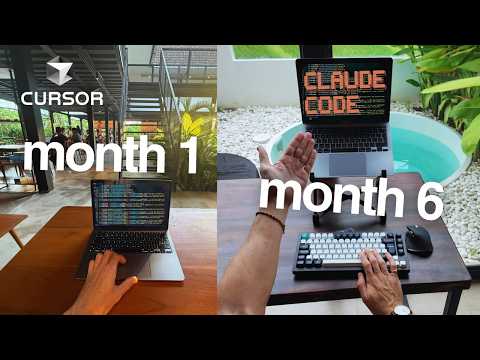
Cursor AI: Building a Full‑stack App from Scratch
by Cursor AI
The video demonstrates how to use Cursor AI’s Composer and Agent features to build a complete full‑stack application from scratch, starting with an empty project folder, setting up a Next.js front‑end, a Node/Express back‑end, integrating a MongoDB database, adding authentication with Firebase Auth, and deploying the finished app to Vercel—all driven by natural‑language prompts and minimal manual coding.
Cursor AI: Building a Full‑Stack App from Scratch
Overview
In this walkthrough you will:
- Create an empty project folder and open it in Cursor.
- Use Composer to scaffold a Next.js front‑end and a Node/Express back‑end.
- Prompt Cursor to add Tailwind CSS, TypeScript, and a MongoDB connection.
- Add Firebase authentication via Composer prompts.
- Deploy the app to Vercel with a single command.
Prerequisites
- Cursor AI installed (free trial or Pro subscription).
- Node.js (v18+) and npm installed.
- MongoDB Atlas account and connection string.
- Firebase project with Authentication enabled.
- Vercel account for deployment.
Step‑by‑Step Instructions
1. Create a New Project Folder
- Open Cursor.
- Click File → New Folder and name it
fullstack-demo. - Open the folder in Cursor.
2. Scaffold the Project with Composer
- Press Ctrl+Shift+P (or Cmd+Shift+P on macOS) to open the Composer prompt.
- Type: "Create a new Next.js + Express full‑stack app" and hit Enter.
- Accept all suggested changes. Cursor will generate:
app/for Next.js pages.server/for Express API.package.jsonwith required dependencies.
3. Add Tailwind CSS
- In the Composer prompt, type: "Add Tailwind CSS to the Next.js app".
- Accept the changes. Cursor will install
tailwindcss,postcss,autoprefixerand add the necessary config files. - Verify
globals.cssimports@tailwind base; @tailwind components; @tailwind utilities;.
4. Configure TypeScript
- Prompt: "Convert the project to TypeScript".
- Cursor will rename
.jsfiles to.tsx/.tsand addtsconfig.json.
5. Set Up MongoDB Connection
- In the
server/folder, openindex.ts. - Prompt: "Add a MongoDB connection using the connection string from Atlas".
- Paste your Atlas connection string when prompted. Cursor will add
mongooseand create adb.tsfile.
6. Create API Endpoints
- Prompt: "Create a CRUD API for a
Postmodel with fields: title (string), content (string), createdAt (date)". - Cursor will generate
models/Post.ts,routes/posts.ts, and updateindex.tsto use the router.
7. Add Firebase Authentication
- Prompt: "Integrate Firebase Auth into the Next.js app".
- Paste your Firebase config when prompted. Cursor will add
firebase.jsand update_app.tsxto provide the auth context.
8. Build the Front‑End UI
- Prompt: "Add a page at
/poststhat lists all posts and a form to create a new post". - Cursor will create
pages/posts.tsxwith a simple UI using Tailwind. - Verify the page fetches data from
/api/postsand posts new entries.
9. Test Locally
- In the terminal, run
npm run devfrom the project root. - Open
http://localhost:3000and verify the front‑end and back‑end are working.
10. Deploy to Vercel
- Commit all changes to a GitHub repo.
- In Vercel, click New Project → Import Git Repository and select your repo.
- Set environment variables:
MONGODB_URI– your Atlas connection stringNEXT_PUBLIC_FIREBASE_API_KEY,NEXT_PUBLIC_FIREBASE_AUTH_DOMAIN, etc.
- Click Deploy.
- Once deployed, visit the Vercel URL to see the live app.
Tips & Gotchas
- Composer Prompts: Keep prompts concise; Cursor performs best with short, clear instructions.
- Environment Variables: Never commit your MongoDB or Firebase secrets; use Vercel’s UI to set them.
- TypeScript Migration: After converting to TS, run
npm run buildto catch any type errors early. - Firebase Auth: Ensure the Firebase project allows the sign‑in methods you plan to use (e.g., Email/Password).
- Vercel Build Output: If the build fails, check that the
next.config.jsincludesoutput: 'standalone'for server‑side API routes. - Cursor Pro vs Free: Composer’s advanced prompts require a Pro subscription; the free tier offers basic code generation.
- Debugging: Use the Chat pane in Cursor to ask for error explanations or to refactor problematic code.
Happy coding with Cursor!
This guide was generated by an AI agent based on the video above. Always verify steps against the original source.Watch on YouTube ↗